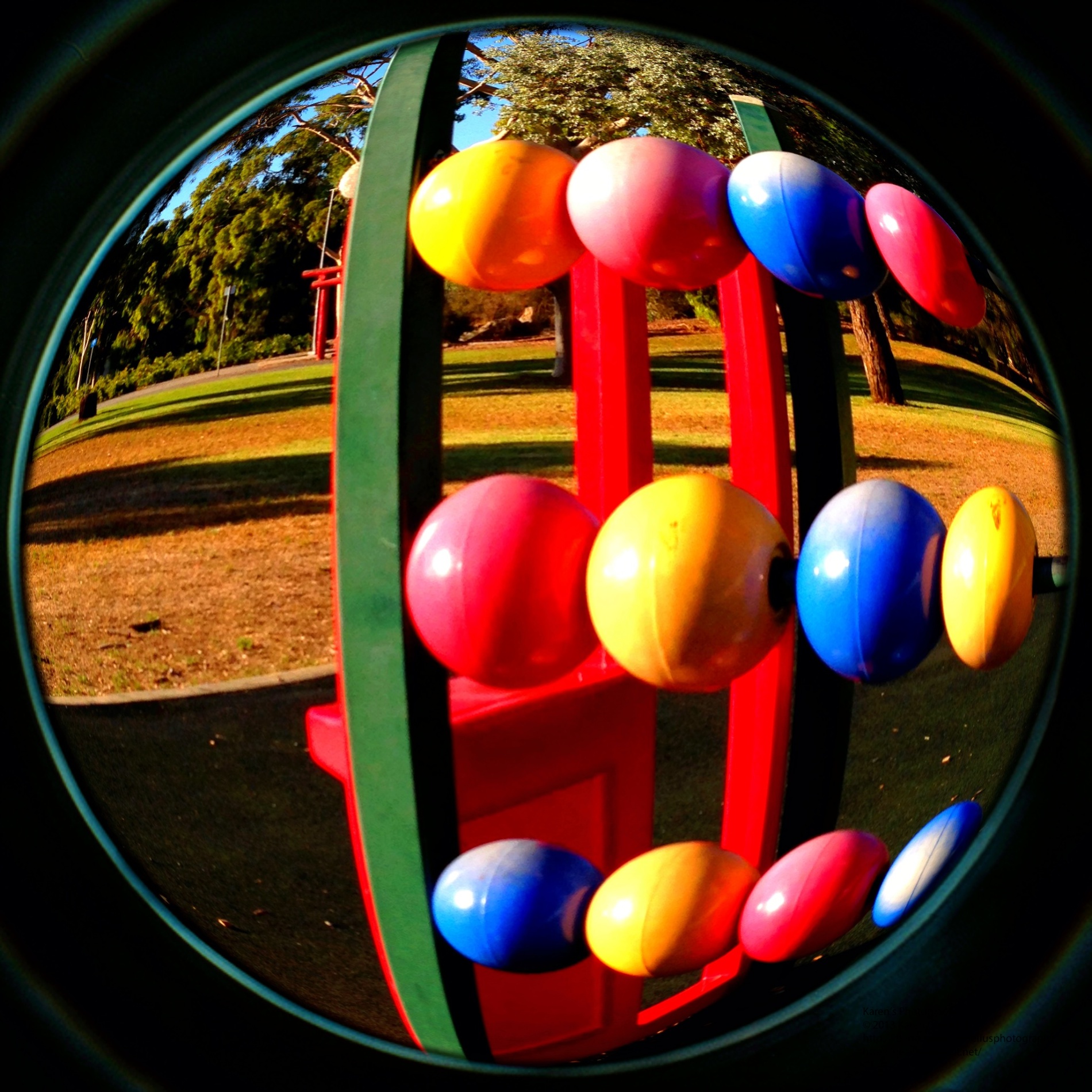
Instagram has added a new member to the family, Instagram Fisheye.
Love the effect!
Crisp, clear, fisheye effects – love it!!!
Big challenge for me about Instagram is that the different features are in different apps. Its a pest having to switch from one to another. Lots to choose from of course – especially if you purchase the additional filters and effects. I brought the LOMO set in the Fisheye App to see if it would also be available in the others – uh huh, purchases required in each app. Also turned out that for $5 all of the fisheye filters, could be turned on, including all future ones.
So, that’s it for this review. Love the app, enjoy Instagram – just those annoyances listed above.
Thanks for reading my review and visiting today.
Hope to see you again soon!
So, next cab off the rank is the Zitrr Camera. Here’s the camera screen …
There are a number of options – level (turned on in this screen shot), seven different screen set up options (including rule of thirds, diagonals, square, golden etc) and different camera types.
There are options to use the usual iPhone camera set up, video, self timer, burst, anti-shake, interval and scan. Quite a versatile range!!
White Balance can be auto or locked, and filters are switched on by ‘pulling’ a red lever. There are 12 filter options – lomo, pastel, feather, crude, intense, haze, old paper, sketch, lux, toon, poster and comic. With this range there are filters that match Vintage (AppsApril#15), Luminance (not all options, but some – AppsApril#3) and a number of the others I have reviewed so far.
The gallery set up is straight forward …
Settings enable location identification, volume on the shutter, sounds, and back up and sharing choices.
I stayed in bed and checked out what Zitrr could do from my view point there …
Some zany effects!! The wardrobe never looked so interesting!!
I also took the opportunity to capture Cayleigh Cat – asleep on my bed and enjoying the opportunity to ‘lie in’!
She is an active sleeper (in fact pushes me across the bed at night!). Cute but!! Some vintage and drawing effects feature here.
Overall – I think this is a pretty handy app – not my favourite, but useful and intuitive to handle. Give it a go I’d say.
So that’s it for this review, thanks for reading it!!
Catch ya next time!
PowerSketch was my first drawing app. By Wondershare, 2012, there is also a PowerCam and Panorama camera app in the set.
Opening screen …
Straight forward and effective. Magic Shot opens the camera. Flash and camera reversal buttons at the top, filter choices, settings button, effects and gallery access buttons at the bottom.
The Edit button opens Camera Roll or the Gallery. Remember to flip on the auto save to Camera Roll button – much easier for retrieving files off your phone. Gallery accesses the in app images.
The Button with 2 arrows up from it opens this screen and provides access to a range of sharing options.
I started with this image …
and played with the options. Love the way you see the effect in action as you take a photo, no delays while you snap and swap filters. No processing delays either – its quick!
This is what a range of the filters look like …
Fun!
There is also a PIP filter – picture in picture – that inserts a hand holding a square that holds the effect selected (remainder of photo is as per the original image). For some strange reason you cannot do this to camera roll photos. Not sure what the issue is there, but it is a neat effect – worth testing out.
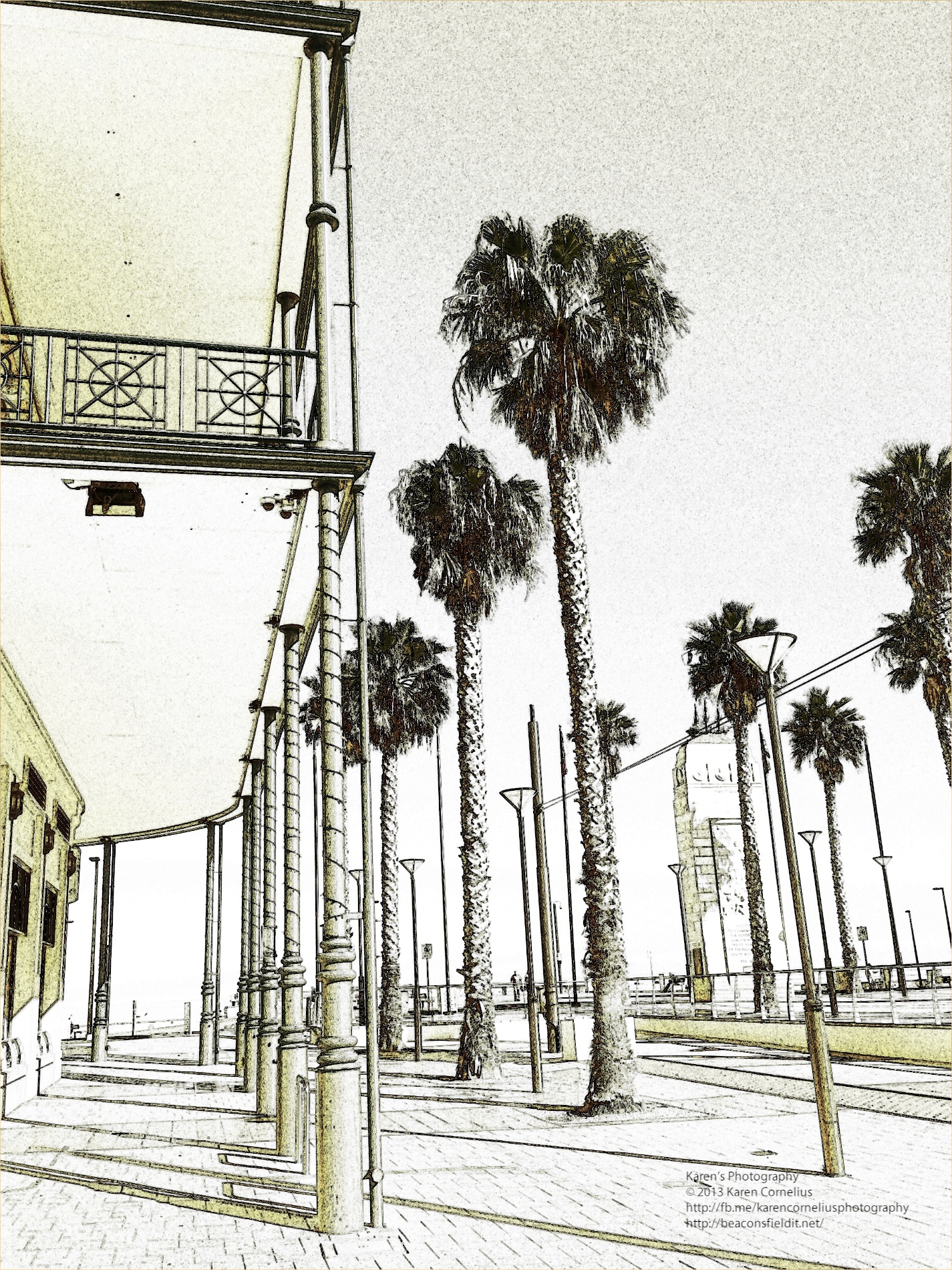
The verdict – better than SketchMe in my opinion, and if you like drawing effects – a bit of fun!!
Thanks for visiting and reading this review – hope to see you again tomorrow!! Cheers!
Sketch me is one of a number of drawing effect apps I own. Its a new purchase from BlueBear apps.
Photos are changed into drawings very easily, with 8 options for different effects. One you’ve selected an effect there are colouring options, an eraser and paint brushes to enhance the image.
I quite like the ‘split screen’ option – means that you can track the impact of the choices you make along the way.
Some examples starting with this image …
The range of effects look like this …
I am not sure that I am ‘sold’ on the idea of turning my photos into drawings. If it’s your thing, this app has choices and is easy to use, worth a peep!
Thanks for reading this review, hope you found it useful! Check you tomorrow!
This was my starting image for playing with XnShape …
The options are to take a picture or to select one from the Camera Roll – as I did.
You can then apply one of 9 drawing edits to the image and access a palette of colours …
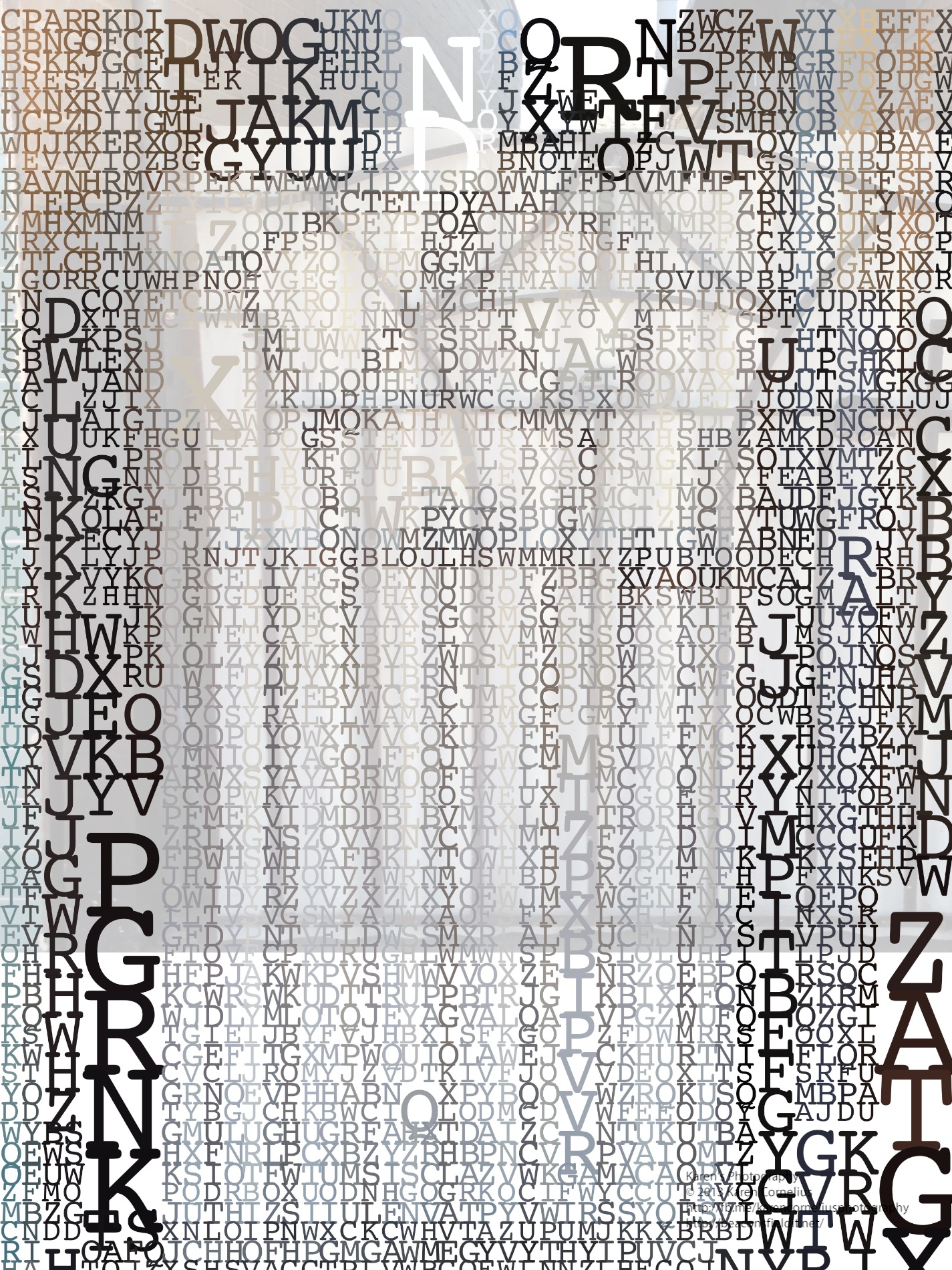
The result is as follows …
Once you’ve selected a treatment, there are a choice of ‘Sharing’ options …
I have to say I am not enamoured of the effects … what do you think?
So, that’s it for this review, enjoy XnShape if you choose to, and hopefully I will see you next time!
Thanks for coming over!



 There are a number of options – level (turned on in this screen shot), seven different screen set up options (including rule of thirds, diagonals, square, golden etc) and different camera types.
There are options to use the usual iPhone camera set up, video, self timer, burst, anti-shake, interval and scan. Quite a versatile range!!
White Balance can be auto or locked, and filters are switched on by ‘pulling’ a red lever. There are 12 filter options – lomo, pastel, feather, crude, intense, haze, old paper, sketch, lux, toon, poster and comic. With this range there are filters that match Vintage (AppsApril#15), Luminance (not all options, but some – AppsApril#3) and a number of the others I have reviewed so far.
The gallery set up is straight forward …
There are a number of options – level (turned on in this screen shot), seven different screen set up options (including rule of thirds, diagonals, square, golden etc) and different camera types.
There are options to use the usual iPhone camera set up, video, self timer, burst, anti-shake, interval and scan. Quite a versatile range!!
White Balance can be auto or locked, and filters are switched on by ‘pulling’ a red lever. There are 12 filter options – lomo, pastel, feather, crude, intense, haze, old paper, sketch, lux, toon, poster and comic. With this range there are filters that match Vintage (AppsApril#15), Luminance (not all options, but some – AppsApril#3) and a number of the others I have reviewed so far.
The gallery set up is straight forward …
 Settings enable location identification, volume on the shutter, sounds, and back up and sharing choices.
I stayed in bed and checked out what Zitrr could do from my view point there …
Settings enable location identification, volume on the shutter, sounds, and back up and sharing choices.
I stayed in bed and checked out what Zitrr could do from my view point there …


 Straight forward and effective. Magic Shot opens the camera. Flash and camera reversal buttons at the top, filter choices, settings button, effects and gallery access buttons at the bottom.
The Edit button opens Camera Roll or the Gallery. Remember to flip on the auto save to Camera Roll button – much easier for retrieving files off your phone. Gallery accesses the in app images.
The Button with 2 arrows up from it opens this screen and provides access to a range of sharing options.
Straight forward and effective. Magic Shot opens the camera. Flash and camera reversal buttons at the top, filter choices, settings button, effects and gallery access buttons at the bottom.
The Edit button opens Camera Roll or the Gallery. Remember to flip on the auto save to Camera Roll button – much easier for retrieving files off your phone. Gallery accesses the in app images.
The Button with 2 arrows up from it opens this screen and provides access to a range of sharing options.
 I started with this image …
 and played with the options. Love the way you see the effect in action as you take a photo, no delays while you snap and swap filters. No processing delays either – its quick!
This is what a range of the filters look like …
and played with the options. Love the way you see the effect in action as you take a photo, no delays while you snap and swap filters. No processing delays either – its quick!
This is what a range of the filters look like …


 The range of effects look like this …


 The options are to take a picture or to select one from the Camera Roll – as I did.
 You can then apply one of 9 drawing edits to the image and access a palette of colours …
 The result is as follows …


 I have to say I am not enamoured of the effects … what do you think?
So, that’s it for this review, enjoy XnShape if you choose to, and hopefully I will see you next time!
Thanks for coming over!
I have to say I am not enamoured of the effects … what do you think?
So, that’s it for this review, enjoy XnShape if you choose to, and hopefully I will see you next time!
Thanks for coming over!
You must be logged in to post a comment.